

Creative generation, made clearer


 Image 1
 Image 2
 Image 3
 Output


Start creating
Start creating
everygenai for your next image, video, and creative draft
Start with a scene, a reference, or a rough idea. Shape the direction, choose the right workflow, and take a useful first draft into your next creative step.
01
Connect the parts of your project with everygenai
A product launch might need a clean still, a short clip, and a soundtrack that fits. everygenai brings those starting points together while leaving you in control of which tool belongs in the project and which results are worth taking further.
Begin with the outcome rather than a long list of effects. Tell everygenai what the asset is for, what should lead the composition, and what needs to remain recognizable. Those decisions make the first result easier to assess.
Public examples offer a way to explore prompts before writing your own. Borrow a useful direction, check the inputs behind it, and revise one meaningful choice at a time instead of changing everything at once.
A generated draft still needs your judgment. Review the subject, composition, wording, and important details before choosing a result. Download suitable work and continue in your own editing process when it needs typography, assembly, or another production step.
Faster drafts · sharper direction
Faster renders.
Faster renders.
Sharper direction.
Use everygenai to turn a focused brief into a visual starting point. Keep the scene, framing, movement, and message clear enough to review before adding more complexity.
Text to video
Image to video
Creative drafts
Reference inputs
Native sound workflows
02
Build a clearer creative brief in everygenai
Keep the next decision manageable: a wider frame, a calmer background, a stronger subject, or a better-fitting soundtrack. Across everygenai, reviewing one meaningful change is more useful than changing everything and losing track of which choice improved the draft.
Choose the workspace according to the result you need, prepare the input that matters, inspect the settings, and review the result before taking the next step.
Video workspace
Image workspace
STEP 1
Choose the task and workspace
Start with video, switch to image, or open a focused tool. Choose your route through everygenai according to the result you need, not just an appealing example.
Add a reference
STEP 2
Prepare the input that matters
Write a focused prompt, add a supported reference, or supply the picture your chosen tool needs. Explain what should change and what the source is meant to guide.
Selected model
Ready to review
STEP 3
Check settings before submitting
Inspect the selected model, available settings, input requirements, and displayed handoff details before sending the request onward.
STEP 4
Review and take the next step
Compare the result with your brief before downloading or continuing. Keep a useful draft, revise the weakest detail, or move a selected image into video after checking the new settings.
Image 1Image 2Image 3
Output
Prompt: Using the character actions and camera language from the reference, create a dynamic combat sequence featuring the supplied characters against the neon alley background. Emulate classic side-scrolling arcade movement, strong impact frames, rhythmic jumps, and synchronized sound cues while preserving the graphic pixel-art style.
03
Five ways to move a project forward with everygenai
Explore a video direction in everygenai
A short video starts with a readable scene and a reason for movement. Describe a new shot with text, or begin with an image input when you already have a visual direction worth developing.
Keep the action, camera movement, and scene relationships clear. Review generated motion and sound before using the clip in a larger edit.
Develop a still before adding motion
Switch to image creation for a scene, illustration, or reference-based draft. Explain the subject and destination, then give every reference a clear purpose.
A chosen still can become the starting point for a separate video request. Follow the handoff, then review the next model's settings before continuing.
Start with the task, not just the model
A portrait, product image, and creative scene ask different questions. Begin with the intended use rather than a model name alone.
Identify the shape, finish, framing, lighting, or negative space that matters. Inspect the result instead of assuming recognizable details were preserved.
Add music made for the project
A clip often needs a soundtrack as well as its own generated sound. Describe a genre, mood, and lyrics or theme, and generate songs with Suno for the same project.
Listen to the whole track under the picture before choosing it, and check that its pace matches the cut.
Build a faceless short from a template
Pick a niche or theme, a voice, music, an art style, and captions. The template drafts the script, narration, and captions and lays the short out as a list of scenes.
Regenerate a weak scene image, re-narrate, or reorder scenes, then export to CapCut or Premiere when the short needs real editing. Check every claim in the script yourself.
Camera moves you can direct
Two stills become one shot
The same character, shot after shot
Sound generated with the picture
One look held across every shot
It hits the beats in order
One continuous take, no cuts
Playable-looking game footage
A kitchen scene with its own sound
04
Workflow examples
01
Product image draft
Illustrative workflowBegin with a product photograph and a focused image-editing brief. Compare the draft with the original for shape, labels, and proportions before placing it into a listing.
02
One short product clip
Illustrative workflowChoose a video direction and describe one small action, such as a careful object turn. Review the duration, framing, continuity, and sound before using it in a larger edit.
03
Editorial illustration
Illustrative workflowGive the image workspace a subject, viewpoint, and visual metaphor that supports your article. Preview the result inside the intended layout and adjust the crop when needed.
04
A song for the soundtrack
Illustrative workflowDescribe the genre, mood, and theme, generate a few songs with Suno, and listen through each one before placing it under your clip.
05
A faceless short
Illustrative workflowChoose a niche, voice, music, and art style. Review the drafted script, narration, and captions scene by scene, then export the project for final editing.
06
A visual series
Illustrative workflowRecord the palette, viewpoint, lighting, and subject scale in a reusable brief. Compare the images together, then revise specific differences instead of assuming automatic campaign-wide consistency.
Choose the route that fits your next decision
Video direction
Explore camera movement, scene continuity, sound, and short-form motion from a focused brief.
Image direction
Develop a still, illustration, product scene, or reference-based visual before adding motion.
Music and sound
Generate songs with Suno, or keep the native sound Veo 3.1 produces with each clip.
Faceless templates
Turn a niche, voice, and art style into a narrated, captioned short with an editable scene list.
Questions and boundaries
Questions before you start with everygenai
Match the tool to your input, check the settings, and leave room for review. These answers explain how to approach everygenai without assuming every model or task behaves the same way.
What is everygenai?
everygenai is a creative platform for AI video, image, and music generation: Veo 3.1 and Wan 2.2 video, image models such as nano-banana-pro and gpt-image-2, Suno music, and faceless video templates. Generation requires an account, and paid plans start at $19/mo, or $25/yr on the Hobbyist plan. Generated results still need your review.
Which input should I choose in everygenai?
Use text for new scenes, reference images for existing visual direction, a start or end frame when a still should lead a video, and a template when you want a complete faceless short. The available inputs depend on the selected route and model.
How should I review a generated draft?
Compare the result with the brief. Check the subject, composition, motion, text, continuity, sound, and important recognizable details before downloading or publishing.
Can I take an image into video?
Yes, where the selected workflow supports an image input. Follow the image-to-video handoff and review the next route's settings before continuing.
Is everygenai free to use?
No. You need to sign in to generate. A free signup includes 3 credits to test with but no downloads of generated assets; paid plans start at $19/mo, or $25/yr on the Hobbyist plan.
Is everygenai an official model provider website?
No. everygenai is an independent creative workflow and discovery experience. Check the selected route and destination before submitting a request.
Questions? Continue to everygenai
Discover more video tools
Discover more image tools





Discover more image models


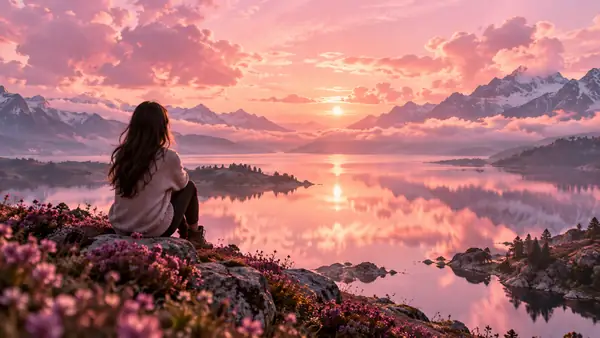
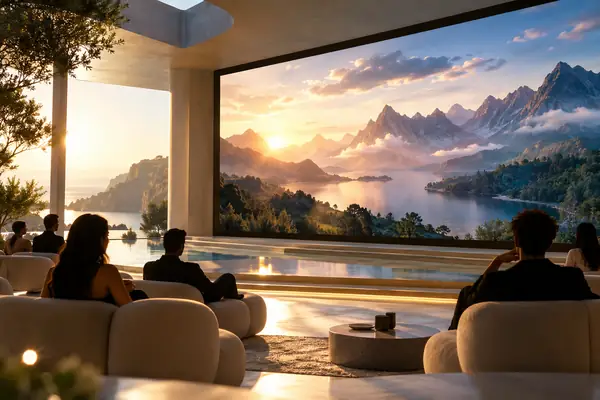

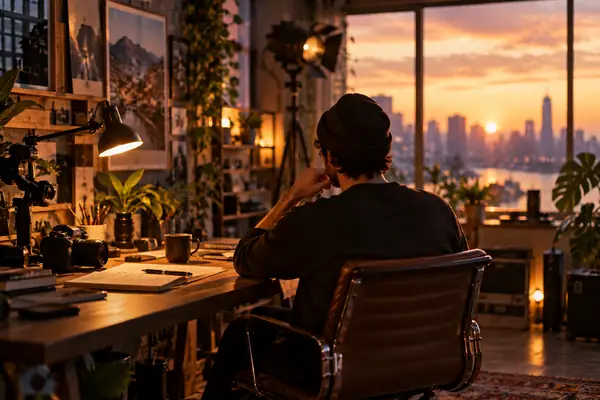
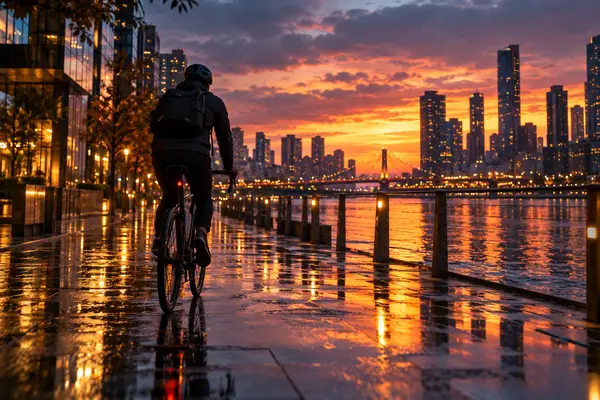


Bring your next creative decision to everygenai
Choose one thing to make clearer: the scene, the framing, the movement, or the message. Start with a focused brief and judge the first draft against that purpose before adding more complexity.
Explore an example, bring your own input, and choose the route that fits. Take a useful result into your next editing step and keep the final creative decisions in your hands.
Start creating
Review the selected route
Bring your own input
Inspect your result